Build a clear, useful agency website with ready-made sections. This guide explains what each block in the InsuranceAI website editor is designed to do, how to add it, and what to check before publishing.
Website editor · browse blocks, preview the page, and adjust styles
Quick answers
Website builder questions
Start with the practical guidance, then browse the block gallery below. Open a question
to read the full answer.
01Question 01How do I add and arrange website builder blocks?
Workspace → Websites → Edit website → Blocks
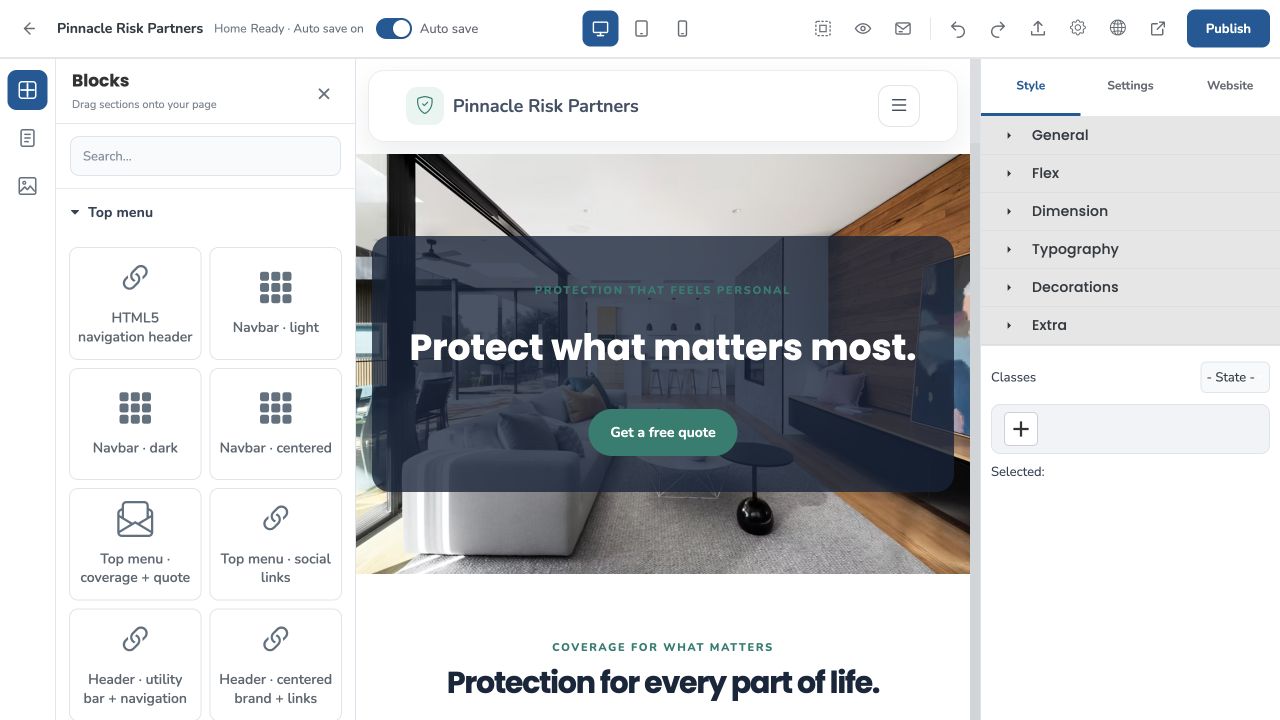
Open Websites, choose a site, and select Edit website. The Blocks panel is on the left; the page canvas is in the middle; Style, Settings, and Website controls are on the right. Search or expand a block category, then drag a block onto the canvas. Select a block or element to edit its text, image, link, layout, or style. Use the desktop, tablet, and phone preview controls to check the design at different widths.
Start with a header and hero, then add only the sections that help a visitor understand your agency or take a next step.
Click text in the canvas to edit it. Select a whole section to move, duplicate, style, or remove that section.
Save changes, preview the full page, test links and forms, and publish when the site is ready.
Example
Example: drag a hero block to the top, add a coverage section and an agency contact form below it, then check the desktop and mobile previews before publishing.
02Question 02What do top menu, header, and hero blocks do?
Website editor → Blocks → Top menu / Hero sections
Top menu and navigation blocks give visitors a consistent way to move around your site. Hero blocks introduce the agency or a key coverage topic near the top of a page. Choose a layout that fits your content, replace sample copy and images, and make the primary button point to a real page, section, phone number, or quote form.
Navigation choices: HTML5 navigation header creates semantic page links; Navbar · light, Navbar · dark, and Navbar · centered provide common navigation styles. Top menu · coverage + quote pairs navigation with a quote action; Top menu · social links adds social destinations. Header · utility bar + navigation adds a small information strip; Header · centered brand + links centers the agency identity; Header · modern dark with quote action, Header · floating pill navigation, and Header · compact with social icons provide alternate header treatments.
Hero choices: Single header image pairs a banner image with an introduction; Video header introduces the page with video; Slider header rotates featured panels; Split hero · family and Photo hero · full width use image-led layouts. Meet your local agent introduces a person; Small business hero and Auto coverage hero focus on those insurance audiences.
Additional hero layouts: Hero: centered creates a text-first centered introduction; Hero: quote form puts a request form beside the headline; Hero: photo background places text over a photo; Hero: Medicare and Hero: agent profile provide specialized starting points. The no-form and form versions are also available for Auto Insurance, Life Insurance, Medicare Supplement, Business Insurance, Home Insurance, and Final Expense; choose the no-form version for a simple introduction or the paired version when you want a quote form in the hero.
Example
For a small agency homepage, use a simple navigation header and one hero with a short promise, one clear call to action, and an accurate agency photo.
03Question 03Which coverage and insurance blocks can I use?
Website editor → Blocks → Coverage sections
Coverage blocks organize the products or services your agency discusses. Use cards and grids for quick scanning, split sections for a short explanation beside an image or callout, and insurance-specific blocks when you need to explain a process or checklist. Review all sample wording carefully and replace it with information approved for your agency.
Coverage cards · images presents options with pictures; Coverage grid · 3 columns shows a compact set of coverage choices; Coverage feature · split pairs coverage information with supporting content; Business protection cards groups business-focused topics.
Coverage choices · quote lightbox lets a visitor select an insurance type and open a request form. Check each option and the form fields before launch.
Insurance body sections include Policy review callout, Claims support section, Life milestones coverage, Medicare guidance steps, Home + renters coverage, Small business risk cards, Umbrella coverage callout, Life insurance needs guide, Annual coverage review, and After an accident checklist. These blocks organize common topics into a scannable explanation, prompt, or list.
Why choose this agency explains your service approach; How it works presents steps; Carrier logos displays approved carrier marks; Carrier logos · image slider arranges logos in a moving strip; Stats bar highlights supplied figures; CTA banner provides a prominent next step; License + disclosure provides space for required notices. Verify factual claims, figures, logos, licenses, and disclosures before publishing.
Example
Use Coverage cards · images for a short overview of Auto, Home, and Life pages, then link each card to the matching page or quote form.
04Question 04How do trust, team, and testimonial blocks work?
Website editor → Blocks → Agency trust / Team & people
Agency trust blocks help visitors understand who they may speak with and how the agency works. Use genuine team details and customer feedback only when you have permission to publish them. Do not leave sample names, quotes, or performance claims on a live site.
About · image and story introduces the agency; Agent profile card and Agent bio introduce an advisor; Trust highlights summarizes agency details; Customer testimonial and Testimonials show individual review-style quotes; Review cards · 3 columns displays multiple review cards.
How it works · 3 steps turns a process into a short sequence; FAQ · expandable HTML5 groups answers into expandable questions; Insurance FAQ provides a ready-made insurance question section.
Team members · profile slider displays team cards in a carousel. Confirm names, titles, biographies, and photos are accurate and approved.
Example
Use How it works · 3 steps to explain how a visitor can request a quote, talk through options, and decide what to do next. Avoid implying a guaranteed price or outcome.
05Question 05Which contact, quote, and form blocks are available?
Contact blocks give visitors a clear next step. Quote banners and calls to action link to a form or contact section. Contact information blocks display ways to reach the agency. Form-related blocks can be complete request forms or small previews used inside a layout. Confirm that form fields, consent text, notifications, and links are set up before going live.
Quote call to action · photo and Quote banner emphasize a quote action; Contact information shows agency contact details; Book an insurance review offers an appointment prompt; Agency hours + contact combines office hours and ways to reach the agency.
Contact options presents phone, email, or callback choices; General contact request form collects a visitor’s question; Call button opens a phone link; Message button points visitors to a messaging or contact destination.
Newsletter signup section collects newsletter interest. Auto Insurance request form, Life Insurance request form, Medicare Supplement request form, Business Insurance request form, Home Insurance request form, and Final Expense request form are preconfigured quote-form starting points for those coverage types. Input field preview, Message field preview, Consent checkbox preview, and Form label are form-building examples or individual form pieces; by themselves, they may be previews rather than a complete working lead form.
Google Map · medium + details, Google Map · compact, and Google Map · full width show a map in different layouts. Replace the sample address and check the directions link.
Coverage comparison table and Coverage comparison arrange information side by side. Keep details accurate and avoid suggesting that a comparison guarantees eligibility or coverage.
Example
Submit a realistic test request after editing a form. Check the on-page success message, the saved lead, and the agency notification destination.
06Question 06What do layout, text, image, and media blocks do?
Layout blocks control how content is grouped and spaced. Basic content and HTML5 blocks provide common page elements. Media blocks add images or video. Select elements on the canvas to change their content and use responsive previews to confirm that columns and images still work on smaller screens.
Responsive 2-column section and Responsive 3-column cards arrange content in columns; Notice / announcement highlights a short update. Container sets a readable content width; 1 column, 4 columns, 2 columns · 3 / 7, and 2 × 2 grid provide column patterns.
Heading, Paragraph, Button, Card, Notice, Check list, Table, Badge, Link, Link box, Office location, and Icon feature provide common content elements. Typed heading and Animated text placeholder add animated text; review readability and motion before publishing.
Image box adds a single image with supporting text; Image gallery · 3 photos and Gallery · 4 images arrange multiple pictures; Video embed adds an external video frame. Use descriptive image text and check that media is appropriate and loads correctly.
HTML5 article creates a content article region; HTML5 aside / callout creates supporting content; HTML5 navigation header and HTML5 footer provide semantic page structures. Page links list and Page link buttons show site navigation as a list or button row. Icon + text pairs a symbol with copy; Icon grid presents several icon items; Big icon callout emphasizes one point. Footer and Footer · social + quick links or Footer · coverage columns create different site endings.
Example
For an office-location section, use a responsive two-column layout with an Office location block in one column and office hours or a map in the other.
07Question 07What do interactive, table, and slider blocks do?
Interactive blocks help visitors browse details without placing every item in a long static list. They can include controls such as tabs, accordions, carousels, or expandable answers. Test each control in the page preview, and make sure important information is still easy to find on a phone and with a keyboard.
Coverage tabs and Coverage comparison panels divide related content into selectable panels; Accordion creates expandable rows; FAQ · expandable HTML5 groups individual questions and answers.
Coverage details table, Coverage comparison, and Plan comparison organize details into rows or columns. Confirm labels and figures remain readable on narrow screens.
Testimonial carousel cards, Insurance services · card slider, Slider header, and Team members · profile slider let visitors move through a set of cards or panels.
LightGallery galleries let visitors open larger images. Gallery · 4 images and Image gallery · 3 photos provide ready-made gallery arrangements.
Hero with coverage choices presents insurance options in a hero layout. Enrollment reminder and Deadline banner display time-sensitive messages; Animated content section applies an entrance effect. Keep deadlines current and use motion sparingly.
Example
Add a Coverage tabs block for several related topics, then use keyboard controls and phone preview to confirm every panel can be reached and read.
08Question 08How do I choose, edit, and publish the right blocks?
Choose blocks that support a visitor’s task instead of adding every available design. A typical agency page needs a clear header, a useful introduction, relevant coverage information, credible agency details, a working contact path, and a footer. Use the site’s settings for agency identity, navigation, page details, and search preview where available.
Replace every sample phone number, email address, agency name, photo, testimonial, logo, office address, and placeholder link.
Check headings, contrast, image descriptions, keyboard access, form consent, links, and mobile layout.
Use accurate, original page titles and descriptions. Keep one clear page topic and write useful headings visitors can understand.
Preview the site, submit forms, verify agency notifications, and confirm the public URL after publishing.
Example
A practical homepage can use a navigation header, one hero, a short coverage grid, a genuine team or process section, one working contact form, and a footer with current agency details.
Screens in this area
Use each breadcrumb to find the matching page. Select an image to
view it in a larger lightbox.
Website editor and block library
Workspace → Websites → Edit website → Blocks
Website builder block library
Every website block, pictured individually
See the block tile as it appears in the editor, then read what it does and how to use it.
Choose a category to jump to the matching block group in the builder.
Introduce visitors to Single header image with a clear insurance message, relevant imagery, and one useful next step. Replace sample copy and connect the call to action to the right coverage page or contact form.
Introduce visitors to Video header with a clear insurance message, relevant imagery, and one useful next step. Replace sample copy and connect the call to action to the right coverage page or contact form.
Introduce visitors to Slider header with a clear insurance message, relevant imagery, and one useful next step. Replace sample copy and connect the call to action to the right coverage page or contact form.
Introduce visitors to Split hero · family with a clear insurance message, relevant imagery, and one useful next step. Replace sample copy and connect the call to action to the right coverage page or contact form.
Introduce visitors to Photo hero · full width with a clear insurance message, relevant imagery, and one useful next step. Replace sample copy and connect the call to action to the right coverage page or contact form.
Introduce visitors to Meet your local agent with a clear insurance message, relevant imagery, and one useful next step. Replace sample copy and connect the call to action to the right coverage page or contact form.
Introduce visitors to Small business hero with a clear insurance message, relevant imagery, and one useful next step. Replace sample copy and connect the call to action to the right coverage page or contact form.
Introduce visitors to Auto coverage hero with a clear insurance message, relevant imagery, and one useful next step. Replace sample copy and connect the call to action to the right coverage page or contact form.
Use Coverage cards · images to explain insurance choices in a clear, scannable format. Keep coverage statements accurate, link to relevant details, and invite visitors to speak with your agency about their situation.
Use Coverage grid · 3 columns to explain insurance choices in a clear, scannable format. Keep coverage statements accurate, link to relevant details, and invite visitors to speak with your agency about their situation.
Use Coverage feature · split to explain insurance choices in a clear, scannable format. Keep coverage statements accurate, link to relevant details, and invite visitors to speak with your agency about their situation.
Use Business protection cards to explain insurance choices in a clear, scannable format. Keep coverage statements accurate, link to relevant details, and invite visitors to speak with your agency about their situation.
Use Coverage choices · quote lightbox to explain insurance choices in a clear, scannable format. Keep coverage statements accurate, link to relevant details, and invite visitors to speak with your agency about their situation.
Use About · image and story to introduce your agency and the people who help customers. Add approved names, current credentials, accurate biographies, and image descriptions that identify the subject.
Use Agent profile card to introduce your agency and the people who help customers. Add approved names, current credentials, accurate biographies, and image descriptions that identify the subject.
Use Trust highlights to introduce your agency and the people who help customers. Add approved names, current credentials, accurate biographies, and image descriptions that identify the subject.
Use Customer testimonial to present customer feedback and build trust. Publish only genuine reviews with permission, preserve the customer’s meaning, and do not imply a guaranteed insurance result.
Use Review cards · 3 columns to present customer feedback and build trust. Publish only genuine reviews with permission, preserve the customer’s meaning, and do not imply a guaranteed insurance result.
Use How it works · 3 steps to add a focused content element to your agency website. Replace the sample text with accurate, plain-language information and check spacing, accessibility, and mobile display.
Use FAQ · expandable HTML5 to answer common insurance questions without crowding the page. Write direct answers, keep policy details accurate, and make sure the expandable controls work with touch and keyboard.
Use Quote call to action · photo to make the next step easy to find. Write an action-focused label, link it to a working form or phone number, and verify the destination before publishing.
Use Quote banner to add a focused content element to your agency website. Replace the sample text with accurate, plain-language information and check spacing, accessibility, and mobile display.
Add Contact information to collect an insurance inquiry or build a form layout. Set required fields, accessible labels, consent wording, and the correct lead destination; submit a test entry before launch.
Use Coverage comparison table to explain insurance choices in a clear, scannable format. Keep coverage statements accurate, link to relevant details, and invite visitors to speak with your agency about their situation.
Use Image gallery · 3 photos to add relevant visual media to your insurance website. Choose licensed, representative imagery, write useful alternative text, and confirm the media loads on mobile.
Use Responsive 2-column section to organize page content and create a clear visual hierarchy. Keep related information together and review the section at desktop and mobile widths.
Use Responsive 3-column cards to organize page content and create a clear visual hierarchy. Keep related information together and review the section at desktop and mobile widths.
Use Notice / announcement to add a focused content element to your agency website. Replace the sample text with accurate, plain-language information and check spacing, accessibility, and mobile display.
Use HTML5 navigation header to help visitors reach key pages and contact your agency. Add your real brand, keep navigation labels concise, and test every link and mobile menu before publishing.
Use HTML5 article to add a focused content element to your agency website. Replace the sample text with accurate, plain-language information and check spacing, accessibility, and mobile display.
Use HTML5 aside / callout to add a focused content element to your agency website. Replace the sample text with accurate, plain-language information and check spacing, accessibility, and mobile display.
Use HTML5 footer to give visitors useful links at the bottom of every page. Add current agency contact details, relevant coverage links, required disclosures, and social destinations you actively maintain.
Introduce visitors to Hero: centered with a clear insurance message, relevant imagery, and one useful next step. Replace sample copy and connect the call to action to the right coverage page or contact form.
Pair the Hero: quote form with a focused insurance headline and a quote request form. Explain the next step, use an approved image, and confirm the form consent and submission settings before publishing.
Introduce visitors to Hero: photo background with a clear insurance message, relevant imagery, and one useful next step. Replace sample copy and connect the call to action to the right coverage page or contact form.
Introduce visitors to Hero: Medicare with a clear insurance message, relevant imagery, and one useful next step. Replace sample copy and connect the call to action to the right coverage page or contact form.
Introduce visitors to Hero: agent profile with a clear insurance message, relevant imagery, and one useful next step. Replace sample copy and connect the call to action to the right coverage page or contact form.
Use Why choose this agency to explain insurance choices in a clear, scannable format. Keep coverage statements accurate, link to relevant details, and invite visitors to speak with your agency about their situation.
Use How it works to explain insurance choices in a clear, scannable format. Keep coverage statements accurate, link to relevant details, and invite visitors to speak with your agency about their situation.
Use Carrier logos to explain insurance choices in a clear, scannable format. Keep coverage statements accurate, link to relevant details, and invite visitors to speak with your agency about their situation.
Use Stats bar to explain insurance choices in a clear, scannable format. Keep coverage statements accurate, link to relevant details, and invite visitors to speak with your agency about their situation.
Use Testimonials to explain insurance choices in a clear, scannable format. Keep coverage statements accurate, link to relevant details, and invite visitors to speak with your agency about their situation.
Use Agent bio to explain insurance choices in a clear, scannable format. Keep coverage statements accurate, link to relevant details, and invite visitors to speak with your agency about their situation.
Use CTA banner to explain insurance choices in a clear, scannable format. Keep coverage statements accurate, link to relevant details, and invite visitors to speak with your agency about their situation.
Use Insurance FAQ to explain insurance choices in a clear, scannable format. Keep coverage statements accurate, link to relevant details, and invite visitors to speak with your agency about their situation.
Use License + disclosure to explain insurance choices in a clear, scannable format. Keep coverage statements accurate, link to relevant details, and invite visitors to speak with your agency about their situation.
Use Call button to explain insurance choices in a clear, scannable format. Keep coverage statements accurate, link to relevant details, and invite visitors to speak with your agency about their situation.
Use Message button to explain insurance choices in a clear, scannable format. Keep coverage statements accurate, link to relevant details, and invite visitors to speak with your agency about their situation.
Use Container to organize page content and create a clear visual hierarchy. Keep related information together and review the section at desktop and mobile widths.
Use 1 column to organize page content and create a clear visual hierarchy. Keep related information together and review the section at desktop and mobile widths.
Use 4 columns to organize page content and create a clear visual hierarchy. Keep related information together and review the section at desktop and mobile widths.
Use 2 columns · 3 / 7 to organize page content and create a clear visual hierarchy. Keep related information together and review the section at desktop and mobile widths.
Use 2 × 2 grid to organize page content and create a clear visual hierarchy. Keep related information together and review the section at desktop and mobile widths.
Use Spacer to organize page content and create a clear visual hierarchy. Keep related information together and review the section at desktop and mobile widths.
Use Divider to organize page content and create a clear visual hierarchy. Keep related information together and review the section at desktop and mobile widths.
Use Footer to give visitors useful links at the bottom of every page. Add current agency contact details, relevant coverage links, required disclosures, and social destinations you actively maintain.
Use Navbar · light to help visitors reach key pages and contact your agency. Add your real brand, keep navigation labels concise, and test every link and mobile menu before publishing.
Use Navbar · dark to help visitors reach key pages and contact your agency. Add your real brand, keep navigation labels concise, and test every link and mobile menu before publishing.
Use Navbar · centered to help visitors reach key pages and contact your agency. Add your real brand, keep navigation labels concise, and test every link and mobile menu before publishing.
Use Heading to add a focused content element to your agency website. Replace the sample text with accurate, plain-language information and check spacing, accessibility, and mobile display.
Use Paragraph to add a focused content element to your agency website. Replace the sample text with accurate, plain-language information and check spacing, accessibility, and mobile display.
Use Button to make the next step easy to find. Write an action-focused label, link it to a working form or phone number, and verify the destination before publishing.
Use Card to add a focused content element to your agency website. Replace the sample text with accurate, plain-language information and check spacing, accessibility, and mobile display.
Use Notice to add a focused content element to your agency website. Replace the sample text with accurate, plain-language information and check spacing, accessibility, and mobile display.
Use Check list to add a focused content element to your agency website. Replace the sample text with accurate, plain-language information and check spacing, accessibility, and mobile display.
Use Table to organize insurance details for side-by-side review. Label each column clearly, verify every figure and description, and check readability on a phone.
Use Badge to add a focused content element to your agency website. Replace the sample text with accurate, plain-language information and check spacing, accessibility, and mobile display.
Use Link to add a focused content element to your agency website. Replace the sample text with accurate, plain-language information and check spacing, accessibility, and mobile display.
Use Link box to add a focused content element to your agency website. Replace the sample text with accurate, plain-language information and check spacing, accessibility, and mobile display.
Use Image box to add relevant visual media to your insurance website. Choose licensed, representative imagery, write useful alternative text, and confirm the media loads on mobile.
Use Office location to show customers where and when they can reach your agency. Enter the verified address and current office hours, then test the map and directions link.
Use Icon feature to add a focused content element to your agency website. Replace the sample text with accurate, plain-language information and check spacing, accessibility, and mobile display.
Use Video embed to add relevant visual media to your insurance website. Choose licensed, representative imagery, write useful alternative text, and confirm the media loads on mobile.
Add Newsletter signup section to collect an insurance inquiry or build a form layout. Set required fields, accessible labels, consent wording, and the correct lead destination; submit a test entry before launch.
Add Input field preview to collect an insurance inquiry or build a form layout. Set required fields, accessible labels, consent wording, and the correct lead destination; submit a test entry before launch.
Add Message field preview to collect an insurance inquiry or build a form layout. Set required fields, accessible labels, consent wording, and the correct lead destination; submit a test entry before launch.
Add Consent checkbox preview to collect an insurance inquiry or build a form layout. Set required fields, accessible labels, consent wording, and the correct lead destination; submit a test entry before launch.
Add Form label to collect an insurance inquiry or build a form layout. Set required fields, accessible labels, consent wording, and the correct lead destination; submit a test entry before launch.
Use Enrollment reminder to add a focused content element to your agency website. Replace the sample text with accurate, plain-language information and check spacing, accessibility, and mobile display.
Use Deadline banner to add a focused content element to your agency website. Replace the sample text with accurate, plain-language information and check spacing, accessibility, and mobile display.
Use Coverage tabs to explain insurance choices in a clear, scannable format. Keep coverage statements accurate, link to relevant details, and invite visitors to speak with your agency about their situation.
Use Coverage comparison panels to explain insurance choices in a clear, scannable format. Keep coverage statements accurate, link to relevant details, and invite visitors to speak with your agency about their situation.
Use Typed heading to add a focused content element to your agency website. Replace the sample text with accurate, plain-language information and check spacing, accessibility, and mobile display.
Use Animated text placeholder to add a focused content element to your agency website. Replace the sample text with accurate, plain-language information and check spacing, accessibility, and mobile display.
Use Coverage details table to explain insurance choices in a clear, scannable format. Keep coverage statements accurate, link to relevant details, and invite visitors to speak with your agency about their situation.
Use Coverage comparison to explain insurance choices in a clear, scannable format. Keep coverage statements accurate, link to relevant details, and invite visitors to speak with your agency about their situation.
Use Plan comparison to organize insurance details for side-by-side review. Label each column clearly, verify every figure and description, and check readability on a phone.
Use Page links list to add a focused content element to your agency website. Replace the sample text with accurate, plain-language information and check spacing, accessibility, and mobile display.
Use Page link buttons to make the next step easy to find. Write an action-focused label, link it to a working form or phone number, and verify the destination before publishing.
Use Gallery · 4 images to add relevant visual media to your insurance website. Choose licensed, representative imagery, write useful alternative text, and confirm the media loads on mobile.
Use Testimonial carousel cards to present customer feedback and build trust. Publish only genuine reviews with permission, preserve the customer’s meaning, and do not imply a guaranteed insurance result.
Introduce visitors to Hero with coverage choices with a clear insurance message, relevant imagery, and one useful next step. Replace sample copy and connect the call to action to the right coverage page or contact form.
Use Insurance services · card slider to add a focused content element to your agency website. Replace the sample text with accurate, plain-language information and check spacing, accessibility, and mobile display.
Use Team members · profile slider to introduce your agency and the people who help customers. Add approved names, current credentials, accurate biographies, and image descriptions that identify the subject.
Use Icon + text to add a focused content element to your agency website. Replace the sample text with accurate, plain-language information and check spacing, accessibility, and mobile display.
Use Icon grid to organize page content and create a clear visual hierarchy. Keep related information together and review the section at desktop and mobile widths.
Use Big icon callout to add a focused content element to your agency website. Replace the sample text with accurate, plain-language information and check spacing, accessibility, and mobile display.
Use Accordion to answer common insurance questions without crowding the page. Write direct answers, keep policy details accurate, and make sure the expandable controls work with touch and keyboard.
Use Animated content section to add a focused content element to your agency website. Replace the sample text with accurate, plain-language information and check spacing, accessibility, and mobile display.
Use Wave divider to organize page content and create a clear visual hierarchy. Keep related information together and review the section at desktop and mobile widths.
Use Curve divider to organize page content and create a clear visual hierarchy. Keep related information together and review the section at desktop and mobile widths.
Use Top menu · coverage + quote to help visitors reach key pages and contact your agency. Add your real brand, keep navigation labels concise, and test every link and mobile menu before publishing.
Use Top menu · social links to help visitors reach key pages and contact your agency. Add your real brand, keep navigation labels concise, and test every link and mobile menu before publishing.
Use Header · utility bar + navigation to help visitors reach key pages and contact your agency. Add your real brand, keep navigation labels concise, and test every link and mobile menu before publishing.
Use Header · centered brand + links to help visitors reach key pages and contact your agency. Add your real brand, keep navigation labels concise, and test every link and mobile menu before publishing.
Use Header · modern dark with quote action to help visitors reach key pages and contact your agency. Add your real brand, keep navigation labels concise, and test every link and mobile menu before publishing.
Use Header · floating pill navigation to help visitors reach key pages and contact your agency. Add your real brand, keep navigation labels concise, and test every link and mobile menu before publishing.
Use Header · compact with social icons to help visitors reach key pages and contact your agency. Add your real brand, keep navigation labels concise, and test every link and mobile menu before publishing.
Use Policy review callout to explain insurance choices in a clear, scannable format. Keep coverage statements accurate, link to relevant details, and invite visitors to speak with your agency about their situation.
Use Claims support section to explain insurance choices in a clear, scannable format. Keep coverage statements accurate, link to relevant details, and invite visitors to speak with your agency about their situation.
Use Life milestones coverage to explain insurance choices in a clear, scannable format. Keep coverage statements accurate, link to relevant details, and invite visitors to speak with your agency about their situation.
Use Medicare guidance steps to explain insurance choices in a clear, scannable format. Keep coverage statements accurate, link to relevant details, and invite visitors to speak with your agency about their situation.
Use Home + renters coverage to explain insurance choices in a clear, scannable format. Keep coverage statements accurate, link to relevant details, and invite visitors to speak with your agency about their situation.
Use Small business risk cards to explain insurance choices in a clear, scannable format. Keep coverage statements accurate, link to relevant details, and invite visitors to speak with your agency about their situation.
Use Umbrella coverage callout to explain insurance choices in a clear, scannable format. Keep coverage statements accurate, link to relevant details, and invite visitors to speak with your agency about their situation.
Use Life insurance needs guide to explain insurance choices in a clear, scannable format. Keep coverage statements accurate, link to relevant details, and invite visitors to speak with your agency about their situation.
Use Annual coverage review to explain insurance choices in a clear, scannable format. Keep coverage statements accurate, link to relevant details, and invite visitors to speak with your agency about their situation.
Use After an accident checklist to explain insurance choices in a clear, scannable format. Keep coverage statements accurate, link to relevant details, and invite visitors to speak with your agency about their situation.
Use Carrier logos · image slider to explain insurance choices in a clear, scannable format. Keep coverage statements accurate, link to relevant details, and invite visitors to speak with your agency about their situation.
Use Book an insurance review to present customer feedback and build trust. Publish only genuine reviews with permission, preserve the customer’s meaning, and do not imply a guaranteed insurance result.
Use Agency hours + contact to show customers where and when they can reach your agency. Enter the verified address and current office hours, then test the map and directions link.
Use Google Map · medium + details to show customers where and when they can reach your agency. Enter the verified address and current office hours, then test the map and directions link.
Use Google Map · compact to show customers where and when they can reach your agency. Enter the verified address and current office hours, then test the map and directions link.
Use Google Map · full width to show customers where and when they can reach your agency. Enter the verified address and current office hours, then test the map and directions link.
Use Contact options to add a focused content element to your agency website. Replace the sample text with accurate, plain-language information and check spacing, accessibility, and mobile display.
Add General contact request form to collect an insurance inquiry or build a form layout. Set required fields, accessible labels, consent wording, and the correct lead destination; submit a test entry before launch.
Use Footer · social + quick links to give visitors useful links at the bottom of every page. Add current agency contact details, relevant coverage links, required disclosures, and social destinations you actively maintain.
Use Footer · coverage columns to explain insurance choices in a clear, scannable format. Keep coverage statements accurate, link to relevant details, and invite visitors to speak with your agency about their situation.
Pair the Auto Insurance hero · no form with a focused insurance headline and a quote request form. Explain the next step, use an approved image, and confirm the form consent and submission settings before publishing.
Pair the Life Insurance hero · no form with a focused insurance headline and a quote request form. Explain the next step, use an approved image, and confirm the form consent and submission settings before publishing.
Pair the Medicare Supplement hero · no form with a focused insurance headline and a quote request form. Explain the next step, use an approved image, and confirm the form consent and submission settings before publishing.
Pair the Business Insurance hero · no form with a focused insurance headline and a quote request form. Explain the next step, use an approved image, and confirm the form consent and submission settings before publishing.
Pair the Home Insurance hero · no form with a focused insurance headline and a quote request form. Explain the next step, use an approved image, and confirm the form consent and submission settings before publishing.
Pair the Final Expense hero · no form with a focused insurance headline and a quote request form. Explain the next step, use an approved image, and confirm the form consent and submission settings before publishing.
Pair the Hero + Auto Insurance form with a focused insurance headline and a quote request form. Explain the next step, use an approved image, and confirm the form consent and submission settings before publishing.
Pair the Hero + Life Insurance form with a focused insurance headline and a quote request form. Explain the next step, use an approved image, and confirm the form consent and submission settings before publishing.
Pair the Hero + Medicare Supplement form with a focused insurance headline and a quote request form. Explain the next step, use an approved image, and confirm the form consent and submission settings before publishing.
Pair the Hero + Business Insurance form with a focused insurance headline and a quote request form. Explain the next step, use an approved image, and confirm the form consent and submission settings before publishing.
Pair the Hero + Home Insurance form with a focused insurance headline and a quote request form. Explain the next step, use an approved image, and confirm the form consent and submission settings before publishing.
Pair the Hero + Final Expense form with a focused insurance headline and a quote request form. Explain the next step, use an approved image, and confirm the form consent and submission settings before publishing.
Add Auto Insurance request form to collect an insurance inquiry or build a form layout. Set required fields, accessible labels, consent wording, and the correct lead destination; submit a test entry before launch.
Add Life Insurance request form to collect an insurance inquiry or build a form layout. Set required fields, accessible labels, consent wording, and the correct lead destination; submit a test entry before launch.
Add Medicare Supplement request form to collect an insurance inquiry or build a form layout. Set required fields, accessible labels, consent wording, and the correct lead destination; submit a test entry before launch.
Add Business Insurance request form to collect an insurance inquiry or build a form layout. Set required fields, accessible labels, consent wording, and the correct lead destination; submit a test entry before launch.
Add Home Insurance request form to collect an insurance inquiry or build a form layout. Set required fields, accessible labels, consent wording, and the correct lead destination; submit a test entry before launch.
Add Final Expense request form to collect an insurance inquiry or build a form layout. Set required fields, accessible labels, consent wording, and the correct lead destination; submit a test entry before launch.
Keep going
Choose another guide or return to the help center.
Hi! Ask about InsuranceAI or getting started. If I can’t answer, I can connect you with our support team right here.
Please don’t share passwords, payment details, or sensitive health information. This chat does not provide insurance advice. Your IP address and approximate network location may be saved with this conversation.
 View
block tile
View
block tile